
Introduction
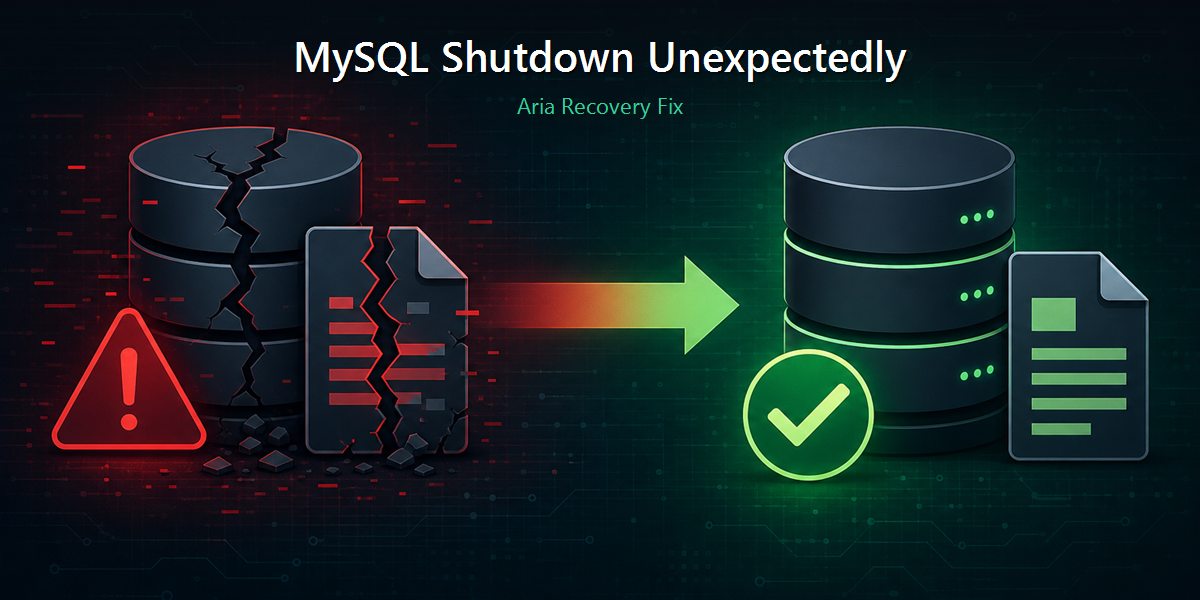
If you open XAMPP Control Panel, click Start next to MySQL, and instantly see Error: MySQL shutdown unexpectedly, you’re not alone. On Windows, that popup is too generic to debug from. The real answer is almost always in the MySQL/MariaDB error log.
This post covers a common real failure: corrupted Aria recovery logs. You’ll see why MariaDB exits because of it, and how to fix it safely without wiping your project databases.
What you’re actually running
In recent XAMPP builds, “MySQL” is usually MariaDB (for example, 10.4.32-MariaDB). MariaDB uses the Aria storage engine for several system tables, including mysql.plugin.
If Aria can’t start cleanly, plugin initialization fails and the server aborts—even when InnoDB looks fine.
Read the real error log
Open:
C:\xampp\mysql\data\mysql_error.logIf your path differs, check datadir in C:\xampp\mysql\bin\my.ini.
The smoking gun often looks like this:
Cannot find checkpoint record at LSN (1,0x3753)
[ERROR] mysqld.exe: Aria recovery failed. Please run aria_chk -r on all Aria tables and delete all aria_log.######## files
[ERROR] Plugin 'Aria' registration as a STORAGE ENGINE failed.
[ERROR] Could not open mysql.plugin table. Some plugins may be not loaded
[ERROR] Failed to initialize plugins.
[ERROR] Aborting
That sequence explains the Control Panel message:
- Aria recovery fails
- Aria engine doesn’t register
mysql.plugincan’t open- Plugins fail to initialize
- MariaDB aborts → XAMPP reports “shutdown unexpectedly”
What usually isn’t the problem
Rule these out quickly before chasing ghosts:
- Port 3306 blocked — check with
netstat -ano | findstr :3306 - Another MySQL/WAMP service — look in Windows Services for mysql / mariadb / WAMP
- Missing binary — confirm
C:\xampp\mysql\bin\mysqld.exeexists
In this incident, port 3306 was free. The crash was Aria log corruption, not a port conflict.
Root cause: corrupted Aria logs
MariaDB keeps Aria recovery state in files like:
C:\xampp\mysql\data\aria_log.00000001
C:\xampp\mysql\data\aria_log_control
If Windows killed the process, power failed, or the server crashed mid-write, those logs can become inconsistent. On the next start, Aria can’t find a valid checkpoint (LSN), recovery fails, and the whole server exits.
Your project databases under mysql\data\ can still be intact. The failure is often in recovery metadata, not in every table.
How to fix it safely
1. Stop MySQL completely
In XAMPP, click Stop for MySQL. Confirm no mysqld.exe is running in Task Manager.
2. Back up, then move corrupt Aria logs
In C:\xampp\mysql\data\, move these files somewhere outside the data folder:
aria_log.00000001(and anyaria_log.########)aria_log_control(optional, but often helpful)mysql.pidif present
Example destination: C:\xampp\mysql\aria_corrupt_backup_YYYYMMDD\
Do not delete ibdata1, ib_logfile*, or your database folders.
3. Repair the Aria plugin table
cd /d C:\xampp\mysql\bin
aria_chk.exe -r ..\data\mysql\plugin
Recovery/fix messages are expected.
4. Start MySQL again
XAMPP Control Panel → Start MySQL. A healthy log should end with something like:
mysqld.exe: ready for connections.
Version: '10.4.32-MariaDB'  socket: ''  port: 3306
5. Verify your databases
C:\xampp\mysql\bin\mysql.exe -u root -e "SHOW DATABASES;"You should see your normal schemas again.
Why this works
Moving the broken Aria log files stops MariaDB from replaying an invalid recovery checkpoint. On the next start, it recreates Aria log state, registers the Aria engine, opens system tables like mysql.plugin, loads plugins, and stays online. Running aria_chk -r on plugin cleans up Aria-table damage that blocked plugin initialization.
Quick notes
- After Aria recovers, “Zerofilling moved table” for some
mysql.*system tables is housekeeping—not a wipe of your app data. - Keep backups outside
C:\xampp\mysql\data\. Folders insidedatacan appear as fake databases inSHOW DATABASES. - If MySQL still won’t start, restoring the
mysqlsystem database from XAMPP’smysql\backupfolder is a last resort—back up first.
Prevention
- Stop MySQL cleanly before shutting down Windows
- Export important databases regularly
- Avoid forcing power-off while queries are running
- Don’t run XAMPP and WAMP MySQL on the same port
- When XAMPP fails, read
mysql_error.logfirst
Summary
“MySQL shutdown unexpectedly” in XAMPP is a symptom, not the diagnosis. In this case, corrupt Aria recovery logs blocked the Aria engine and plugin bootstrap. Move the bad aria_log files out of data, repair mysql\plugin with aria_chk -r, restart MySQL, and MariaDB usually comes back with your databases still in place.
Checklist: read mysql_error.log → confirm Aria / mysql.plugin errors → stop MySQL → move aria_log.* → run aria_chk -r → start MySQL → verify SHOW DATABASES.