
Introduction
Sending email uses SMTP. Receiving email is a different job: your phone, Outlook, Thunderbird, or a backend script must download or sync messages that already arrived at the mailbox on the server.
Two protocols dominate inbox access: IMAP and POP3. Each has its own ports and encryption options. Mix them up with SMTP ports (25, 465, 587) and your client will fail to connect—even if sending works fine.
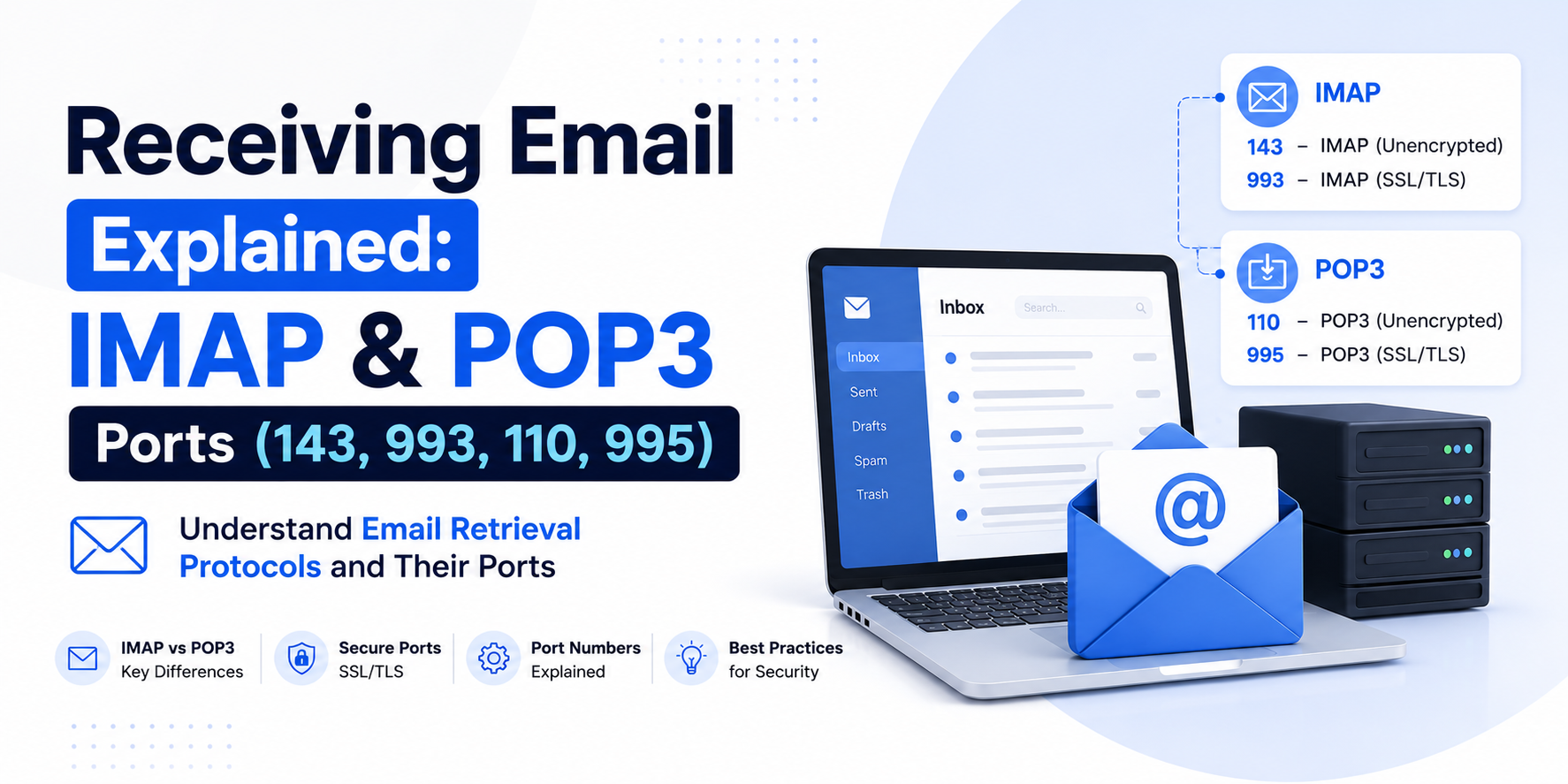
This guide explains how receiving email works, the difference between IMAP and POP3, and the main ports—143, 993, 110, and 995—with when to use them, how they work, and practical configuration examples.
Sending vs receiving (clear split)
- SMTP — send / submit outbound mail (ports like 587, 465, 25)
- IMAP / POP3 — read / sync / download inbound mail from the server
A full mail account usually needs both:
Outgoing (SMTP): smtp.example.com : 587 (STARTTLS)
Incoming (IMAP):  imap.example.com : 993 (SSL/TLS)
If you only configure SMTP, you can send but never see replies in that client. If you only configure IMAP/POP3, you can read mail but cannot send.
How receiving email works
Simplified flow:
- Someone sends mail to
you@yourdomain.com - Their server delivers it (usually via SMTP port 25) to your domain’s mail server (MX record)
- The message is stored in your mailbox on that server
- Your app or mail client connects with IMAP or POP3, authenticates, and fetches or syncs messages
IMAP and POP3 do not replace MX delivery. They are the “last mile” between the stored mailbox and the device reading it.
IMAP vs POP3 (choose the protocol first)
IMAP (Internet Message Access Protocol)
IMAP keeps mail on the server and syncs folders, read/unread state, flags, and sent items across devices. Delete or move a message on your phone, and the same change appears on your laptop.
Best for: phones + laptop + webmail together, teams, modern workflows.
POP3 (Post Office Protocol v3)
POP3 traditionally downloads messages to one device and can remove them from the server (depending on client settings). It is simpler, but poor for multi-device sync.
Best for: single-device access, offline archives, older setups, or when you intentionally want local-only copies.
Rule of thumb today: prefer IMAP unless you have a clear reason to use POP3.
Types of receiving ports (overview)
- IMAP 143 — standard IMAP; usually upgraded with STARTTLS
- IMAP 993 — IMAP over implicit SSL/TLS (IMAPS)
- POP3 110 — standard POP3; may use STARTTLS
- POP3 995 — POP3 over implicit SSL/TLS (POP3S)
As with SMTP, the port usually implies how encryption starts. Wrong port + wrong encryption mode = connection or handshake errors.
Encryption reminder: STARTTLS vs implicit SSL
- Implicit SSL/TLS (993, 995) — TLS starts immediately when you connect
- STARTTLS (143, 110) — connect in plain text, then upgrade with a STARTTLS command before login
Modern advice: use 993 (IMAP) or 995 (POP3) with SSL/TLS unless your provider only documents STARTTLS on 143/110.
IMAP port 143 — standard IMAP
How it works
The client connects to port 143. The server greets in plain IMAP. If STARTTLS is supported, the client upgrades to TLS, then logs in and selects folders (INBOX, etc.).
Without encryption, credentials and message content can travel in clear text on unsafe networks. That is why open, unencrypted 143 is discouraged on the public internet.
When to use port 143
- Provider documents IMAP + STARTTLS on 143
- Internal/private networks where policy still uses STARTTLS on 143
- Not the first choice when 993 is available
How to use it (example)
Incoming server: imap.yourprovider.com
Protocol: IMAP
Port: 143
Encryption: STARTTLS
Username: you@yourdomain.com
Password: your password / app password
IMAP port 993 — IMAPS (recommended)
How it works
Port 993 is IMAP inside TLS from the first byte (IMAPS). The client opens a secure socket, then speaks IMAP commands over that channel. Folders stay on the server; multiple devices stay in sync.
When to use port 993
- Default choice for receiving mail in apps and mail clients
- You use Gmail, Microsoft 365, Zoho, cPanel mail, or most hosts that publish “IMAP SSL”
- You need phones and desktops sharing one mailbox cleanly
How to use it (examples)
Mail client
Incoming server (IMAP): imap.gmail.com
Port: 993
Encryption: SSL/TLS
Authentication: normal password / app password
Username: your@gmail.com
Another common host style
Incoming server: mail.yourdomain.com
Port: 993
Encryption: SSL/TLS
Username: you@yourdomain.com
Conceptual PHP (IMAP extension)
// {host:port/flags}mailbox
$mailbox = '{imap.example.com:993/imap/ssl}INBOX';
$inbox = imap_open($mailbox, 'you@example.com', 'secret');

if ($inbox) {
    $emails = imap_search($inbox, 'UNSEEN');
    // process message numbers...
    imap_close($inbox);
}
The /ssl flag with port 993 is the usual implicit-TLS pairing.
POP3 port 110 — standard POP3
How it works
The client connects to port 110, optionally upgrades with STARTTLS, authenticates, lists messages, and downloads them. Older defaults deleted mail from the server after download; modern clients often have a “leave messages on server” checkbox.
When to use port 110
- Provider only offers POP3 + STARTTLS on 110
- Legacy devices that cannot use 995
- Avoid plain/unencrypted 110 on public networks
How to use it (example)
Incoming server: pop.yourprovider.com
Protocol: POP3
Port: 110
Encryption: STARTTLS
Username: you@yourdomain.com
Password: secret
POP3 port 995 — POP3S
How it works
Port 995 is POP3 over implicit SSL/TLS. Same download-oriented behavior as POP3, with encryption from the start of the connection.
When to use port 995
- You must use POP3 (single device / local archive policy)
- Provider documents “POP3 SSL on 995”
- You want encrypted POP3 instead of plain 110
How to use it (example)
Incoming server: pop.yourprovider.com
Protocol: POP3
Port: 995
Encryption: SSL/TLS
Username: you@yourdomain.com
Password: secret

# Recommended client option if available:
Leave a copy of messages on the server = enabled
(only if you still need webmail or a second device)
Note: even with “leave on server,” POP3 still lacks IMAP’s strong folder and flag sync. Prefer IMAP when you can.
Quick decision guide
- Normal inbox on phone + laptop? IMAP 993 + SSL/TLS
- Provider says IMAP STARTTLS? IMAP 143 + STARTTLS
- Must use POP3 securely? POP3 995 + SSL/TLS
- Legacy POP3 STARTTLS only? POP3 110 + STARTTLS
- Sending mail? That is SMTP (usually 587/465)—not these ports
Full account example (send + receive)
A complete business mailbox often looks like this:
Name: Rohit
Email: hello@yourdomain.com

# Receive
IMAP host: mail.yourdomain.com
IMAP port: 993
IMAP encryption: SSL/TLS

# Send
SMTP host: mail.yourdomain.com
SMTP port: 587
SMTP encryption: STARTTLS
SMTP auth: same username/password
Same username for both sides is common; hosts and ports differ by direction.
Receiving mail in applications
Web apps usually send with SMTP. Some products also receive—helpdesks, CRM email-to-ticket, backup scripts:
- Use IMAP when the app should sync folders or keep messages on the server
- Use a dedicated mailbox (example:
support@) so personal mail is not mixed in - Prefer app passwords / restricted credentials
- Poll on a schedule (cron) or use provider webhooks/API when available (often better than raw IMAP polling)
Common mistakes and fixes
- Using SMTP port for incoming — 587/465 will not work as IMAP/POP3
- SSL on 143 or STARTTLS on 993 — encryption mode must match the port
- POP3 on multiple phones — messages appear missing or inconsistent; switch to IMAP
- Certificate warnings — host name in settings must match the certificate (use the host your provider documents)
- Auth failed — wrong password, IMAP disabled in account settings, or provider requires an app password / OAuth
Quick connectivity checks
# IMAPS (993)
openssl s_client -connect imap.example.com:993 -quiet

# IMAP STARTTLS (143)
openssl s_client -connect imap.example.com:143 -starttls imap -quiet

# POP3S (995)
openssl s_client -connect pop.example.com:995 -quiet
If TLS connects but the mail app still fails, the remaining issue is usually username, password, or account-side IMAP/POP access being disabled.
Conclusion
Receiving email is about IMAP or POP3, not SMTP. IMAP (especially port 993 with SSL/TLS) is the right default for almost everyone who reads mail on more than one device. POP3 (995 with SSL/TLS) still works for single-device or download-and-archive workflows. Ports 143 and 110 remain relevant when providers use STARTTLS instead of implicit TLS.
Configure incoming and outgoing separately, match each port to the correct encryption mode, and prefer IMAP unless you have a specific POP3 need. That removes most “cannot connect to incoming server” issues before you dig into DNS or firewall rules.
Quick checklist: SMTP = send, IMAP/POP3 = receive → prefer IMAP 993 → use POP3 995 only when needed → match SSL/STARTTLS to the port → test with the exact host your provider publishes.